Admin manual
A practical operator manual for fashion and apparel wholesale teams using PrepackFlow Atlas to set up Size mix and Case pack ordering without confusing buyer-facing wording.
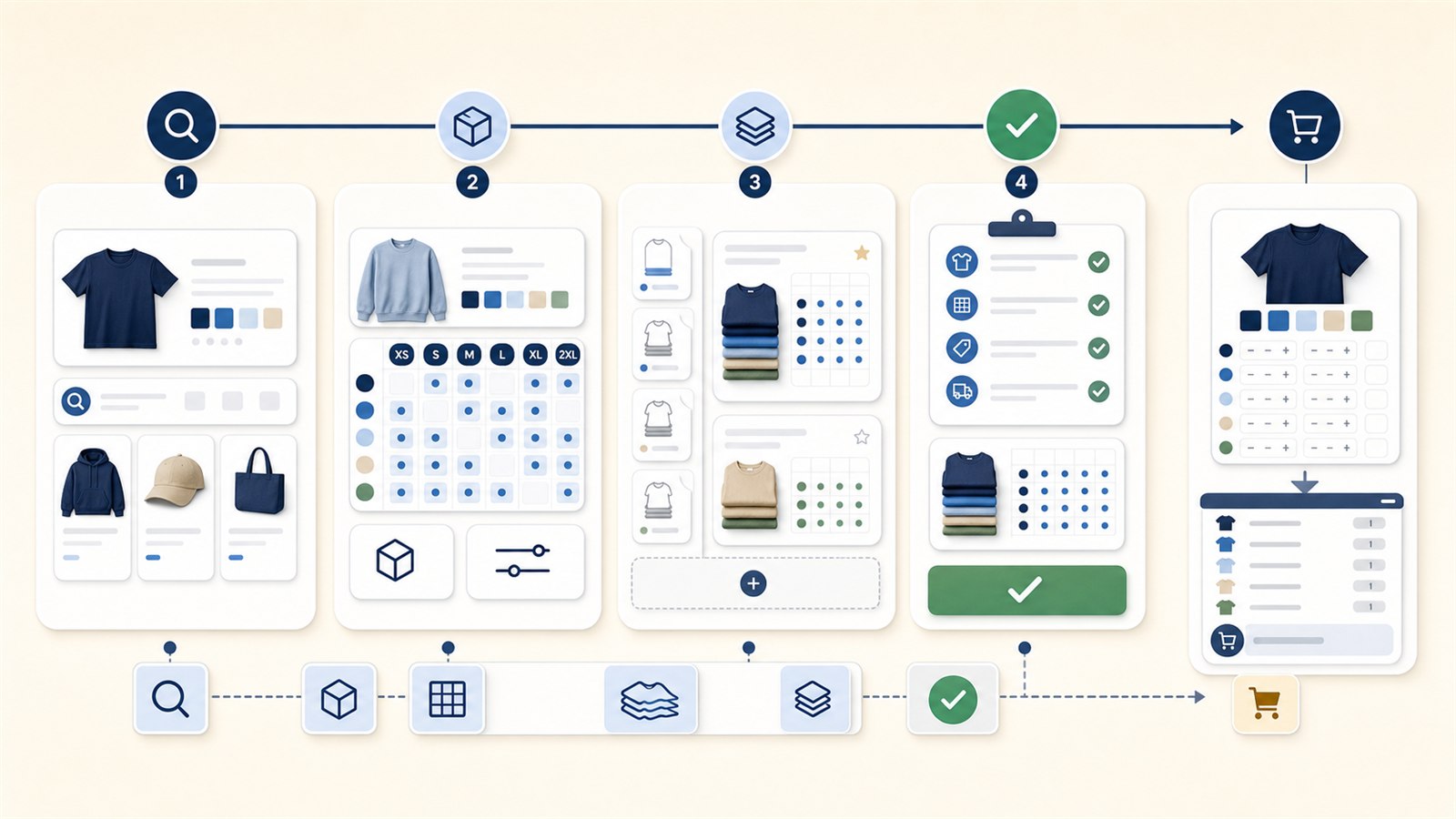
- Quick Start, Catalog Items, Pack Library, and Review & Publish workflow.
- Storefront review guidance for product page, cart page or drawer, and checkout summary wording.
- Clear Size mix and Case pack wording for apparel wholesale buyers.
Quick Start
Use Quick Start when a fashion or apparel wholesale product needs a fast, guided setup before it reaches the storefront.
- Search for the Shopify product, confirm the recommended starter pack, and use the size mapping dropdowns to match each variant to the buyer-visible size.
- Read the setup checklist from top to bottom: product selected, sizes mapped, pack chosen, buyer preview checked, publish readiness reviewed.
- Use the buyer preview as a wording check before publishing the setup to the live storefront.
Catalog Items
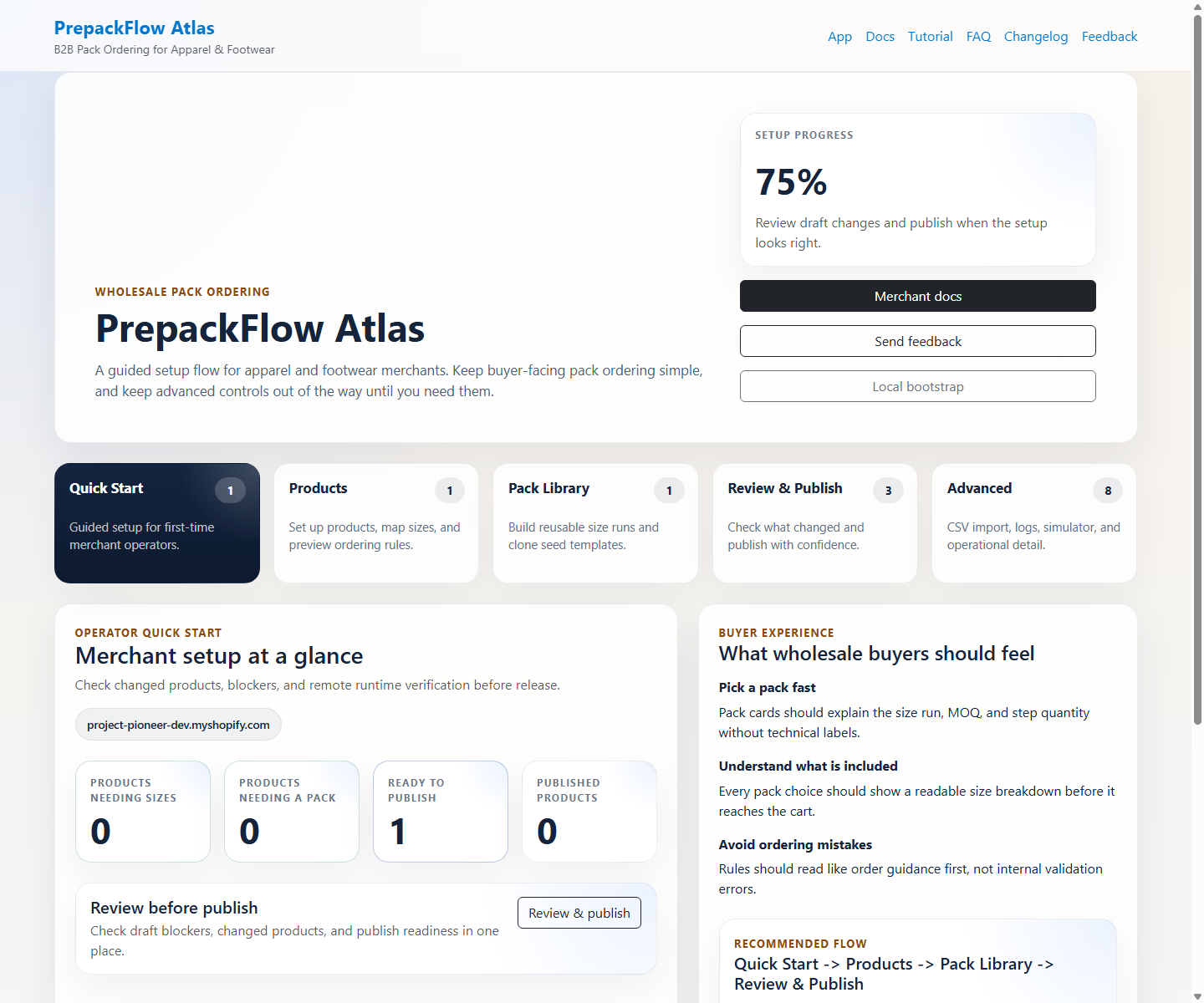
Use Catalog Items to prepare each wholesale product for pack ordering and to see which products still need sizing, pack setup, or publish review.
- Type at least three characters to search Shopify products automatically, then choose a result before the setup editor appears.
- Needs sizes means one or more Shopify variants still need a buyer-facing size label before a Size mix can be trusted.
- Needs pack means the product has sizing context but no reusable Size mix or Case pack ready for buyers.
- Published products stay out of the setup-attention grid unless mapping, availability, or publish readiness needs work.
Pack Library
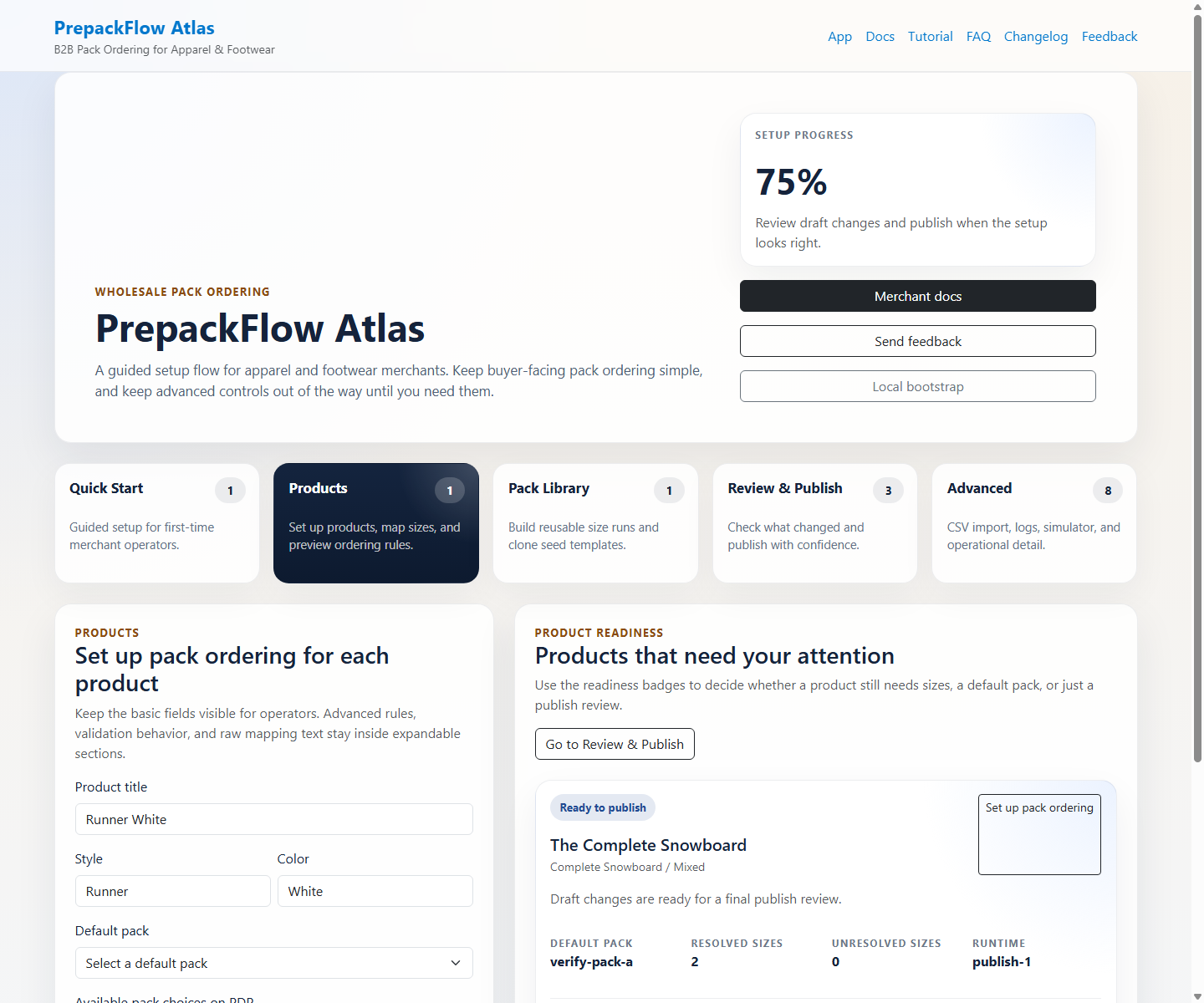
Use Pack Library to keep repeatable apparel packs consistent across styles, colors, and seasonal drops.
- The default view shows the reusable pack cards full width so operators can review existing packs first.
- Use Add pack for a new custom pack or Edit on a card to open the custom editor with that pack prefilled.
- Size mix is for a pack that contains multiple buyer-visible sizes, such as S x 1, M x 2, L x 2, XL x 1.
- Case pack is for a fixed unit count where the buyer is choosing a case, carton, or similar single-pack quantity.
- Keep pack names short and buyer-friendly because the same wording is reused in product setup, cart review, and checkout summaries.
Review & Publish
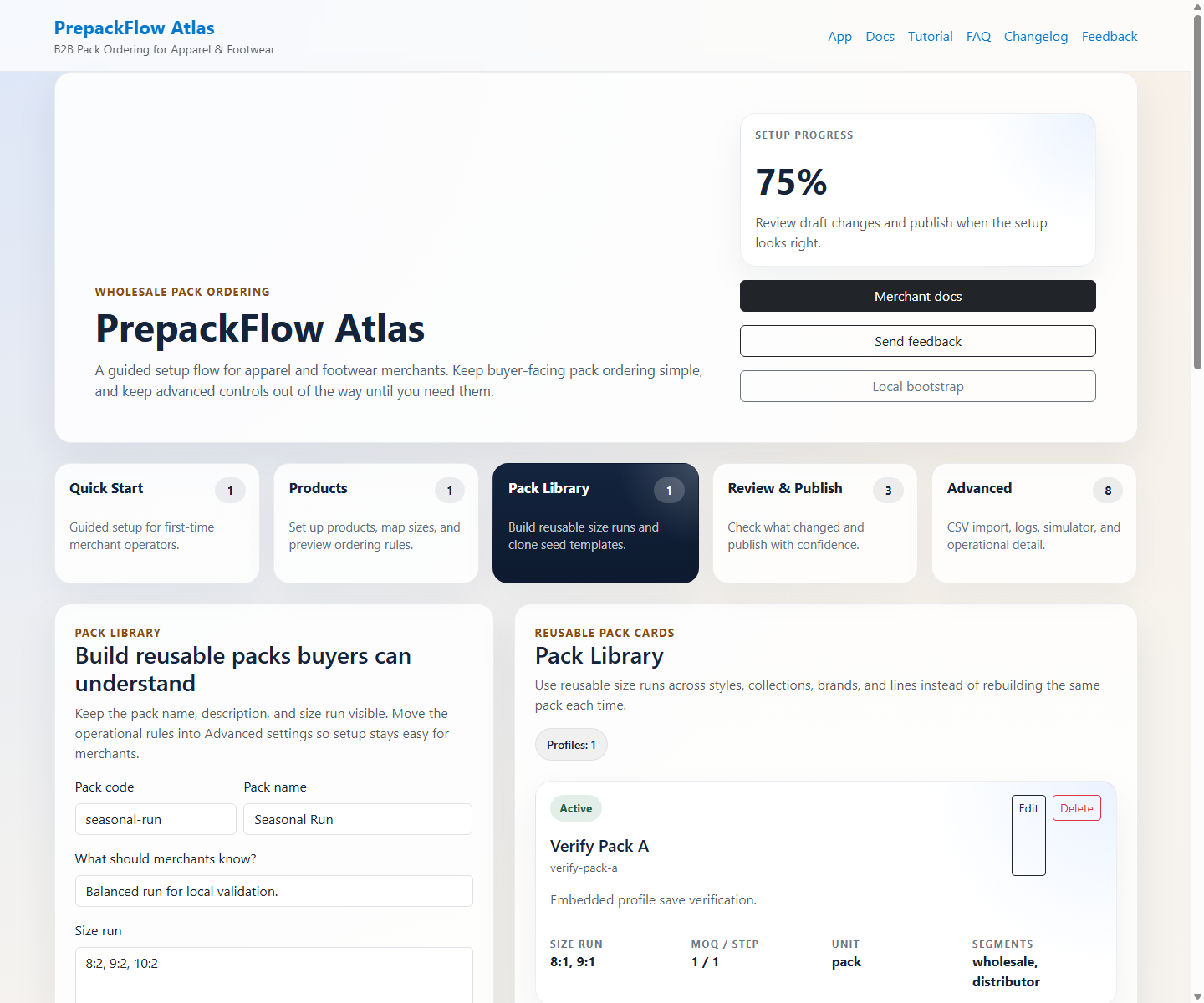
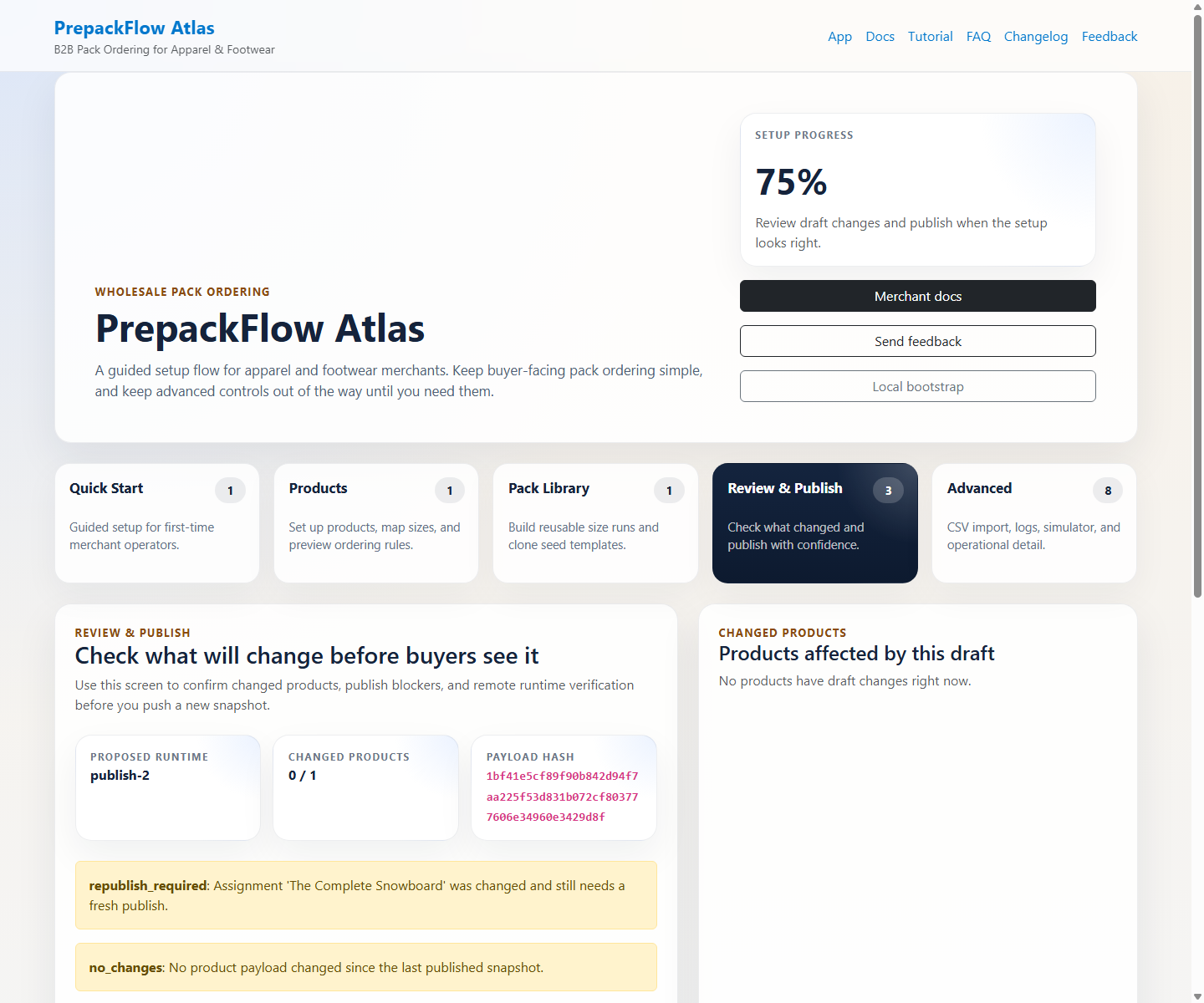
Use Review & Publish as the final operator checkpoint before a pack setup becomes part of the buyer journey.
- Review what changed, what is blocked, and which products are ready to publish.
- After publishing, run safe storefront smoke as needed to confirm product, cart, cart drawer, and checkout-before-payment summaries look buyer-friendly.
- Use the storefront drift scan to check public pages for reachability, wholesale signals, and unwanted internal terms.
What buyers should see
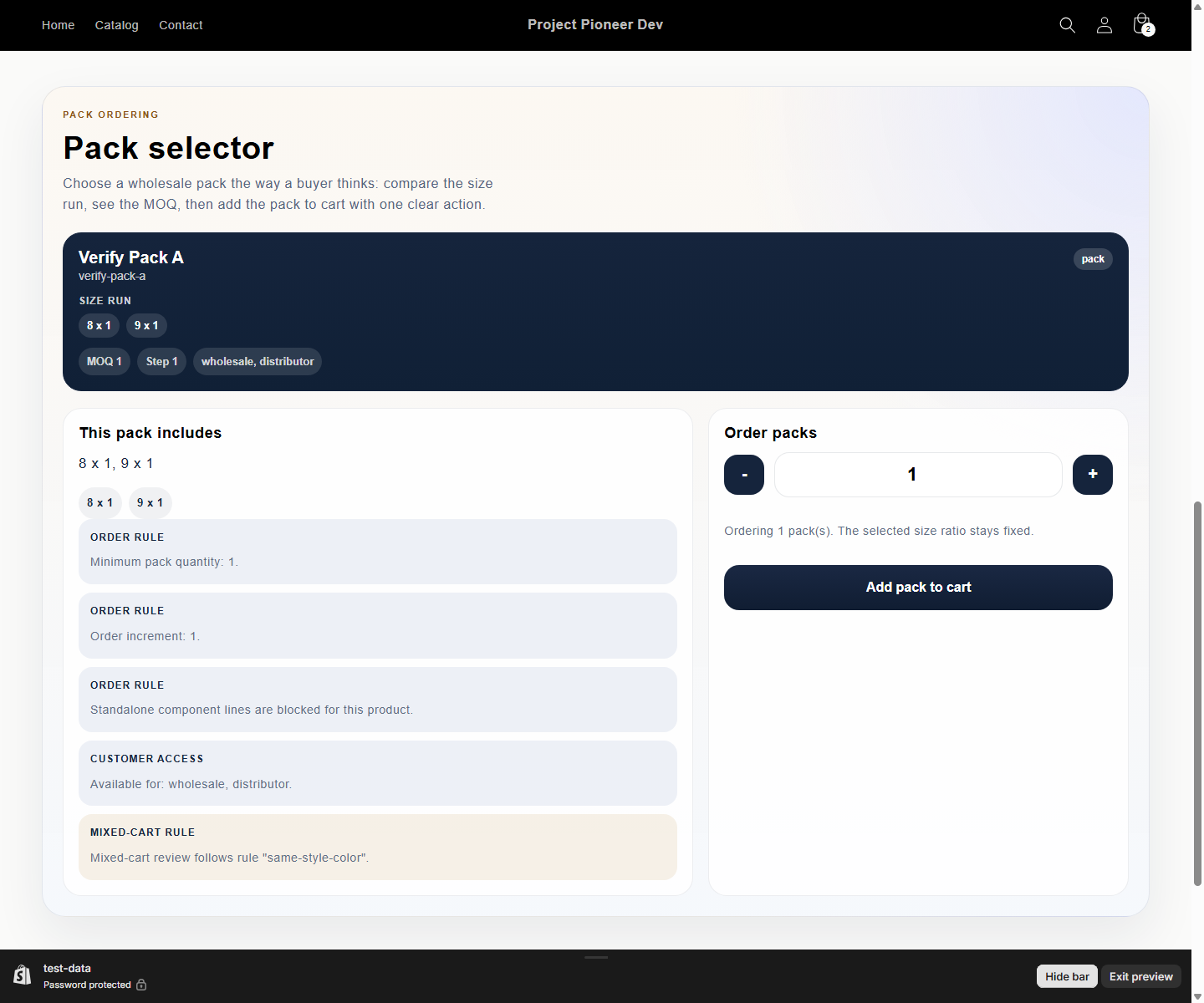
Buyer-facing wording should stay simple and consistent from product page to cart review to checkout review.
- Use Size mix when the buyer is ordering a mixed run of sizes.
- Use Case pack when the buyer is ordering a fixed case or carton quantity.
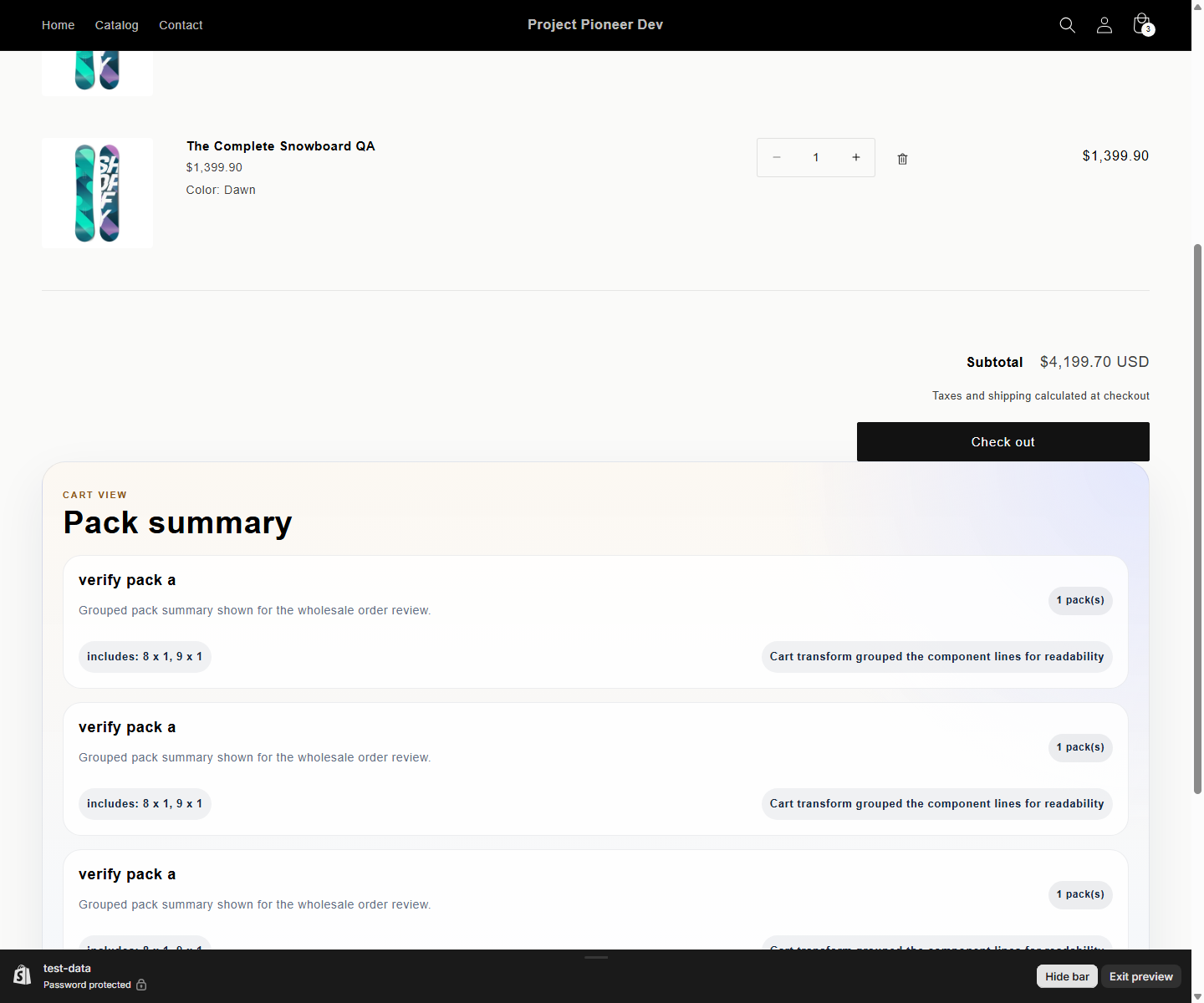
- Keep selected carton options such as Black and Ivory as separate visible pack summaries instead of merging them into one pack count.
- Allow ordinary Shopify items to appear beside complete wholesale packs, while pack summaries remain readable in long cart drawers.
- Avoid internal setup language in buyer-facing notes. Buyers should see pack choices, included sizes or units, order minimums, and grouped summaries.
- If a cart or checkout line looks unclear, return to Catalog Items and Pack Library first, then review the setup again after it is corrected.
Troubleshooting unclear pack states
When an operator cannot tell whether a product is ready, use the visible state to choose the next action instead of guessing.
- If the product has no buyer-visible sizes, finish size mapping before assigning or publishing a Size mix.
- If the pack card is missing or the wrong pack type appears, update the default pack in Catalog Items or adjust the reusable pack in Pack Library.
- If cart review looks right but checkout review does not, adjust the setup and keep the observation attached to the product work item.
- If the buyer should be limited by customer segment, keep that validation opt-in and verify the intended buyer account before publishing.
Shopify surfaces behind the workflow
These Shopify.dev concepts explain the platform surfaces PrepackFlow Atlas uses, while this manual keeps operator instructions focused on the merchant and buyer workflow.
- Admin UI extensions place product-page actions and blocks near the merchant's product work.
- Theme app extensions add storefront blocks and assets through the theme editor path.
- Cart Transform linesMerge can present related cart lines as one grouped buyer choice.
- Cart and checkout validation can stop orders that do not meet the configured rules before the order is placed.